How to configure and evaluate eDRX for cellular IoT
How to configure and evaluate eDRX for cellular IoT
When working with battery-powered cellular IoT devices, low-power modes like PSM (Power Saving Mode) and eDRX (Extended Discontinuous Reception) are typically enabled by default. While most cellular modules support these features, developers often assume they’re functioning properly without verification. But assumptions don’t extend battery life, measuring how these configurations work does.
This article walks through a technical demonstration on how to remotely configure eDRX settings on a device using Soracom‘s API while simultaneously verifying the device’s real-time behavior with an Otii instrument to measure system energy consumption.
System validation setup overview
The device under test (DUT) is a Sony Spresense board equipped with an LTE-M extension and a Soracom SIM. On the measurement side, everything runs through an Otii Arc Pro, which powers the device and captures high-resolution current traces.

The validation test goal was:
- Configure eDRX and paging time window (PTW) via Soracom’s API
- Observe the device behavior during attach, idle, and paging windows
- Measure energy consumption across different configurations
Configuring eDRX
In LTE networks, Discontinuous Reception (DRX) is a standard feature that lets devices sleep between network listen intervals. For low-power IoT, this was extended to eDRX, enabling longer sleep intervals of up to several minutes without detaching from the network.
For this article, eDRX configurations were changed via the Soracom API using over-the-air commands that enable remote changes without requiring any firmware modifications or reboots between runs. These validations push different values for:
- eDRX cycle length, which controls how long the modem sleeps between listening windows
- Paging Time Window (PTW), which determines how long the device stays awake to receive messages
In practice, this is what it looks like:
| Parameter | What It Does | Typical Impact |
|---|---|---|
| eDRX cycle | Sets the total sleep interval (e.g. 20s, 40s, 80s…) | Longer cycles = lower power, but more latency |
| PTW | Sets the window when the device listens for messages | Short PTW = less power, more chance to miss messages |
As a note, not all eDRX values are supported by all networks. Even when a modem replies “OK,” the actual behavior may vary depending on signal quality, operator policies, and SIM profiles. That’s why it’s essential to observe the system under power.
Step 1. Configure eDRX using AT commands
Device-side eDRX configuration is performed using AT commands with a desired eDRX Cycle length and the Paging Time Window (PTW) length. For full details, see Soracom’s official documentation.
Note: There is no standardized AT command for configuring the PTW length. If you need to configure the PTW length, refer to your modem’s AT command manual for details.
To configure eDRX, use the following command:
AT+CEDRXS=<mode>,<AcT-type>,<Requested_eDRX_value>
Where the parameters are:
<mode>- 2 → enable eDRX
- 3 → disable eDRX
- 0 → disable eDRX and reset to default
<AcT-type>- 4 → LTE-M
- 5 → NB-IoT
<Requested_eDRX_value>→ Binary string enclosed in double quotes, corresponding to the desired eDRX Cycle Length
For example, the command below will enable eDRX for LTE-M with a requested cycle length of 40.96 seconds:
AT+CEDRXS=2,4,"0011"
Step 2. Read back eDRX and PTW values accepted by the network
After configuration, use the following command to check the eDRX Cycle and PTW lengths accepted and applied by the network:
AT+CEDRXRDP
The modem returns:
+CEDRXRDP: <AcT-type>,
           <Requested_eDRX_value>,
           <NW-provided_eDRX_value>,
           <Paging_time_window>
Where the response fields parameters are:
<AcT-type>and<Requested_eDRX_value>→ Same meaning as above, 4 for LTE-M, 5 for NB-IoT.<NW-provided_eDRX_value>→ Binary string corresponding to the cycle Length accepted and applied by the network<Paging_time_window>→ Binary string corresponding to the Paging Time Window length accepted and applied by the network
For example, a response of +CEDRXRDP: 4,"0011","0011","0011" with matching cycle values indicates that the network accepted and applied the requested cycle length of 40.96 seconds, and also applied a PTW length of 5.12 seconds.
Differences between the requested and network-provided values indicate that the network did not accept the requested cycle length, and the device should instead operate according to the network-provided length.
Verifying eDRX behavior energy consumption
With the system powered by the Otii Arc Pro, a series of tests was conducted using different eDRX and PTW values pushed via the Soracom API. The process followed these steps:
- Power on the device via Otii Arc.
- The LTE modem attaches to the network and receives updated eDRX config via the Attach Accept message.
- Otii captures the current consumption trace, showing paging peaks, idle periods, and total energy used.make
Results: current trace comparisons
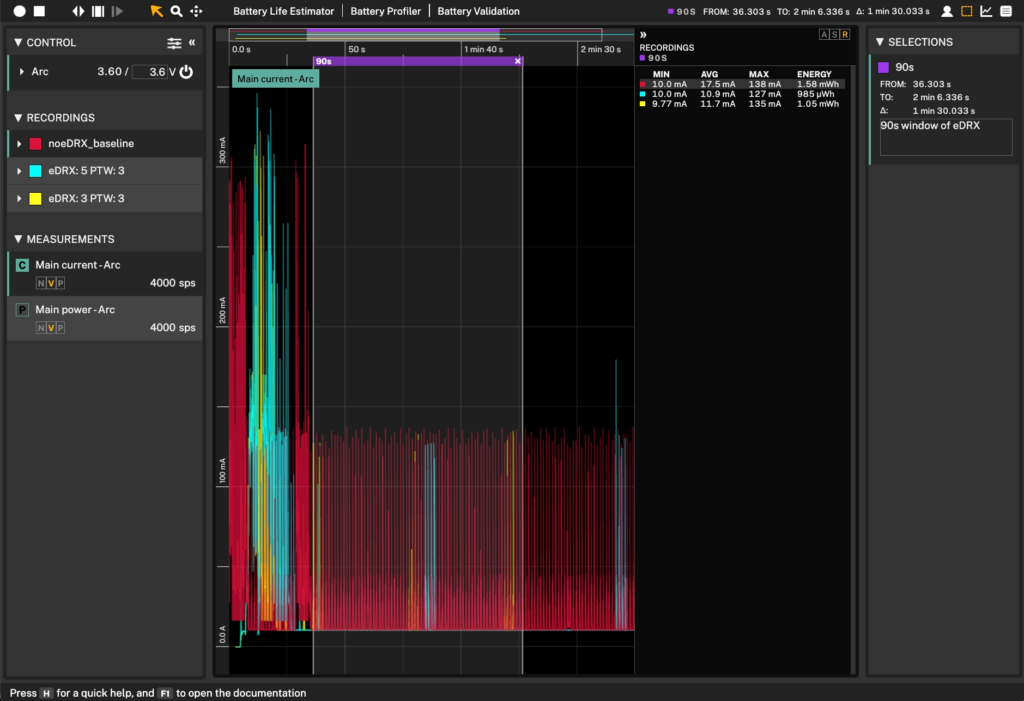
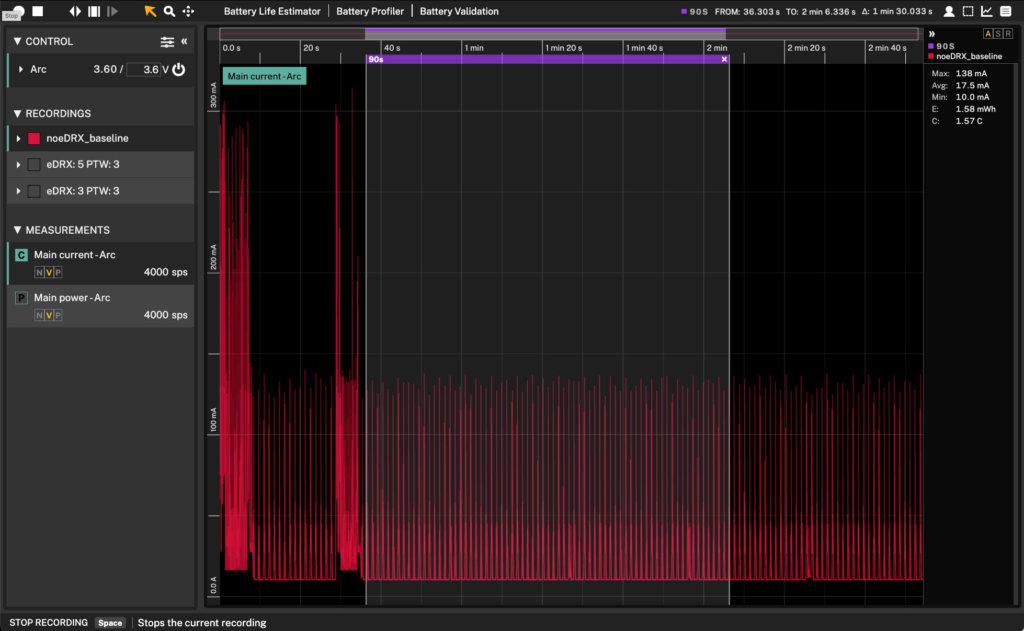
Baseline, No eDRX
- Paging interval: every 1.28 seconds
- Power trace: consistent peaks throughout
- Energy over 90s window: ~1.58 mWh
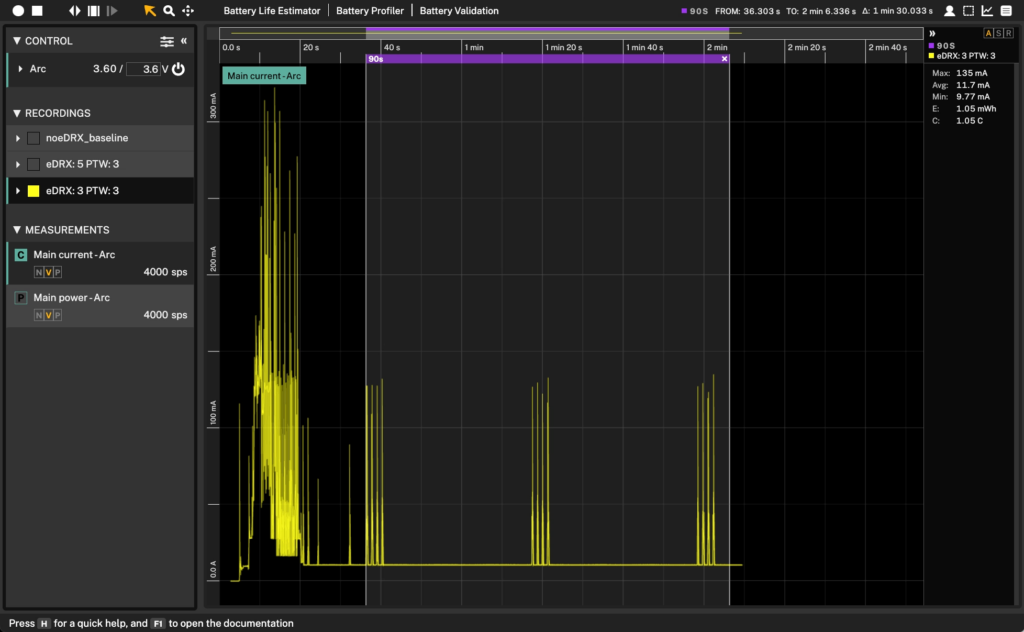
eDRX cycle 3, PTW 3
- Paging interval: every 40.96 seconds
- PTW: 5.12 seconds
- Energy over 90s: ~1.05 mWh
eDRX cycle 5, PTW 3
- Fewer paging windows
- Energy over 90s: ~985 µWh
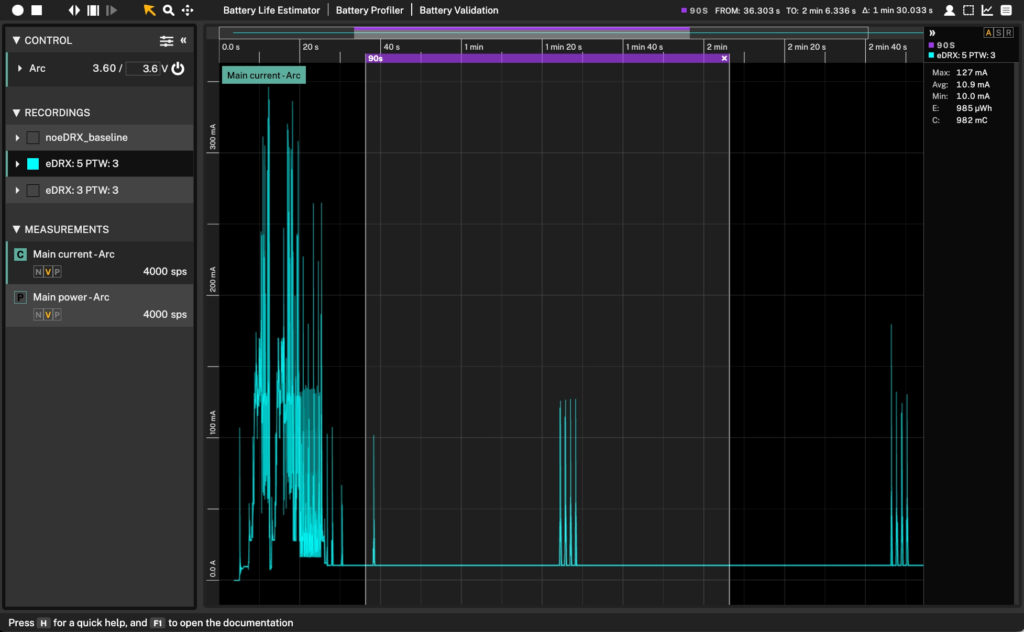
These differences are impossible to detect in firmware logs or modem responses. Only current trace measurements reveal the true power impact of these settings.
Bonus: Download the Otii project here and analyze the measurements yourself. No Otii instrument is required; just open the project in the Otii Desktop App to inspect the current traces and energy results.
Key takeaways for developers working with cellular IoT
Here’s what this hands-on validation teaches us:
- Don’t trust the AT response, trust the current trace. Only live current analysis tells you whether your modem is behaving as configured.
- Use network-side control to your advantage. APIs like Soracom’s let you update power behavior in the field, ideal for remote deployments.
- Automate your testing setup. With the Otii Automation Toolbox, you can run multiple tests, configs, and comparisons on repeat.
- Be realistic about trade-offs. Longer eDRX cycles = more battery savings, but at the cost of reachability and responsiveness.
- Measure at the system level. Optimizing just the modem is not enough. Measure total system power, including MCU and peripherals.
Measurement, not just configuration, is essential
In cellular IoT, power-saving features are powerful, but they only deliver if you validate their impact in real-world scenarios.
You can control device behavior from the network, but unless you measure what happens at the power level, you’re operating in the dark.
With a setup as simple as:
- A cellular dev board,
- a power measurement tool like Otii Arc or Otii Ace, and
- network side control via Soracom’s API,
You can:
- Observe attach and idle behavior in real-time
- Quantify energy savings per config
- Optimize your design based on actual system performance
Whether you’re building sensors for agriculture, asset trackers, or smart meters, optimizing battery life is non-negotiable. Tuning hardware or firmware alone isn’t enough; the only way to trust your low-power strategy is to test it.
Want more details? Check out the video below: